Sign in with JumpCloud
To enable Sign in with JumpCloud, you need to create an OAuth app in your JumpCloud account. The following steps guide you through the process:
-
Go to the JumpCloud Admin Console.
-
Navigate to Access > SSO Application > Click on Add New Application > Search for "OpenID Connect" and select it > Click Next.

-
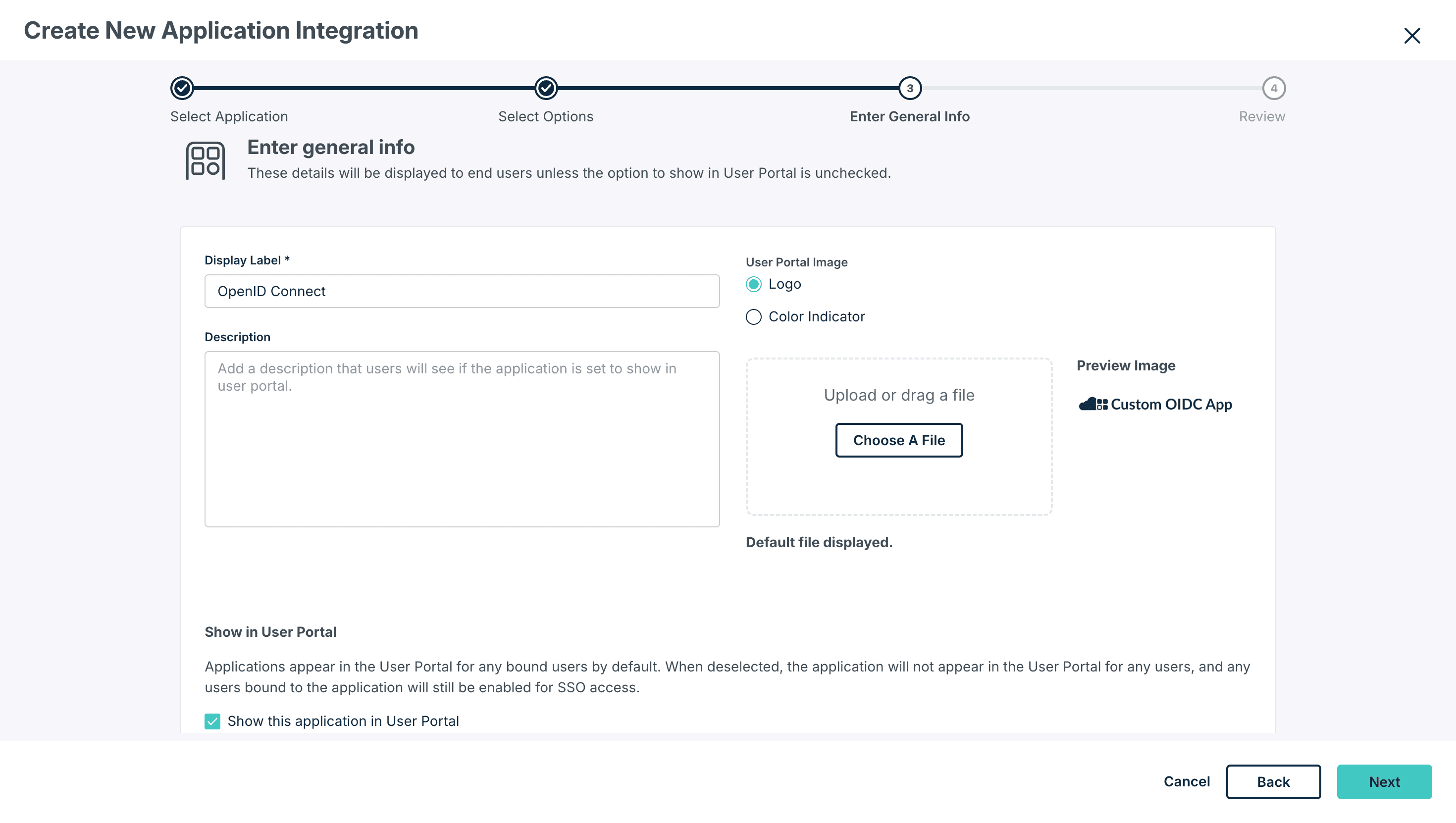
Configure the required fields (Display Names etc) and click Next.
-
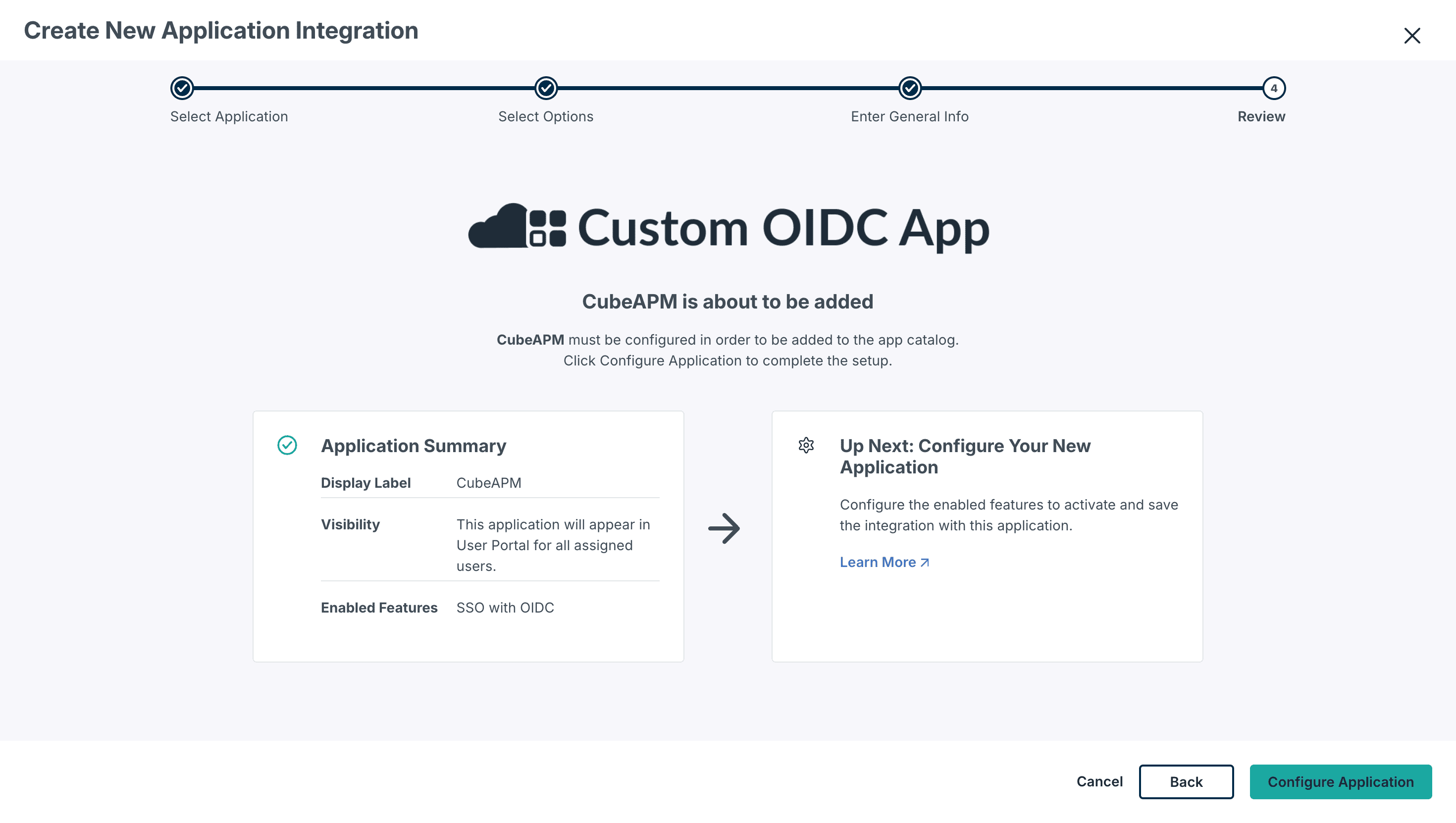
Click on Configure Application.
-
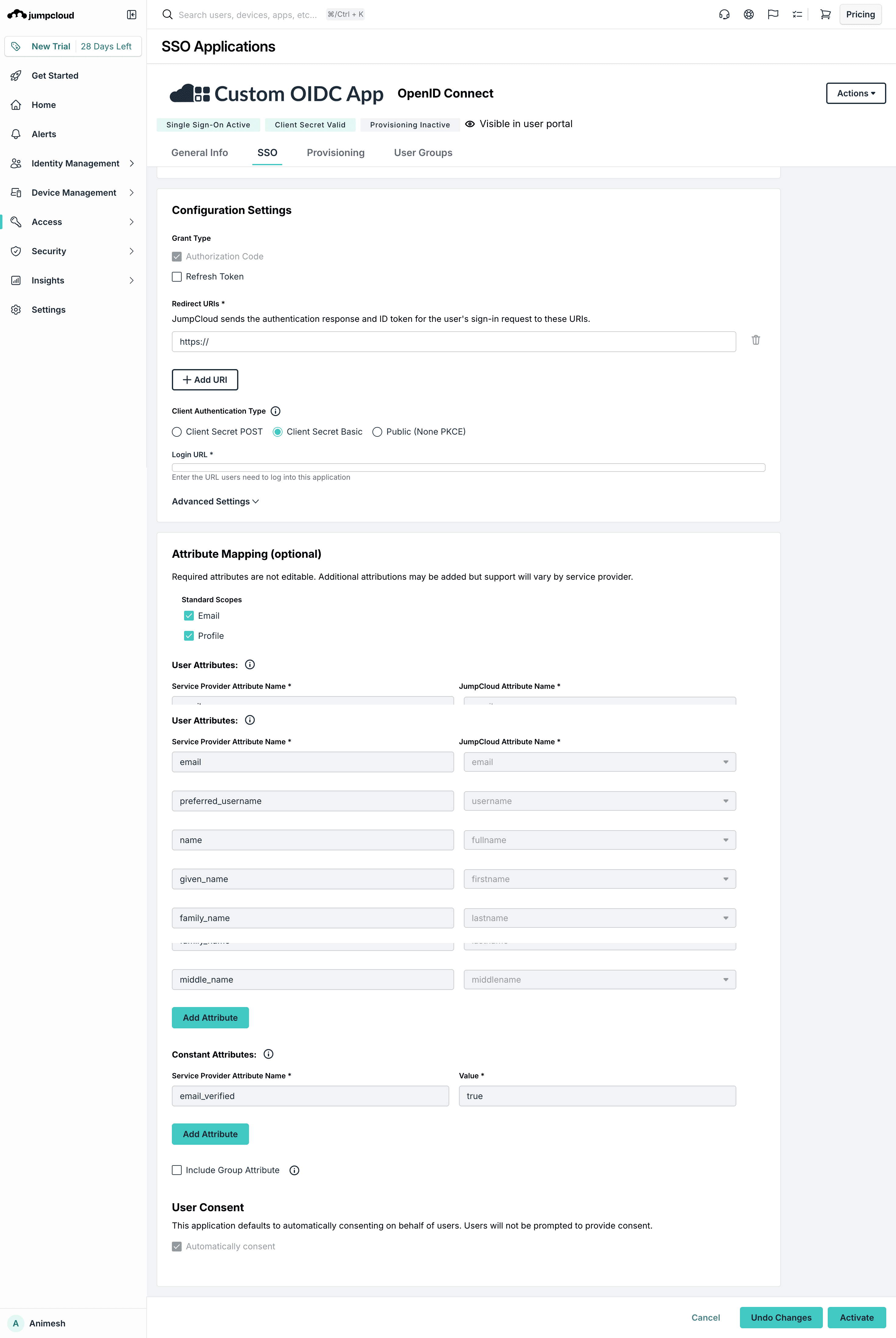
Fill the below details under SSO:
-
Login URIs:
<cubeapm_address>/login -
Select Client Authentication Type as
Client Secret Basic -
Redirect URIs:
<cubeapm_address>/api/auth/self-service/methods/oidc/callback/jumpcloud -
Check the Email and Profile in Standard Scopes inside Attribute Mapping
-
Click Activate.
-
Copy the Client ID and Client Secret from Pop-up page.
-
-
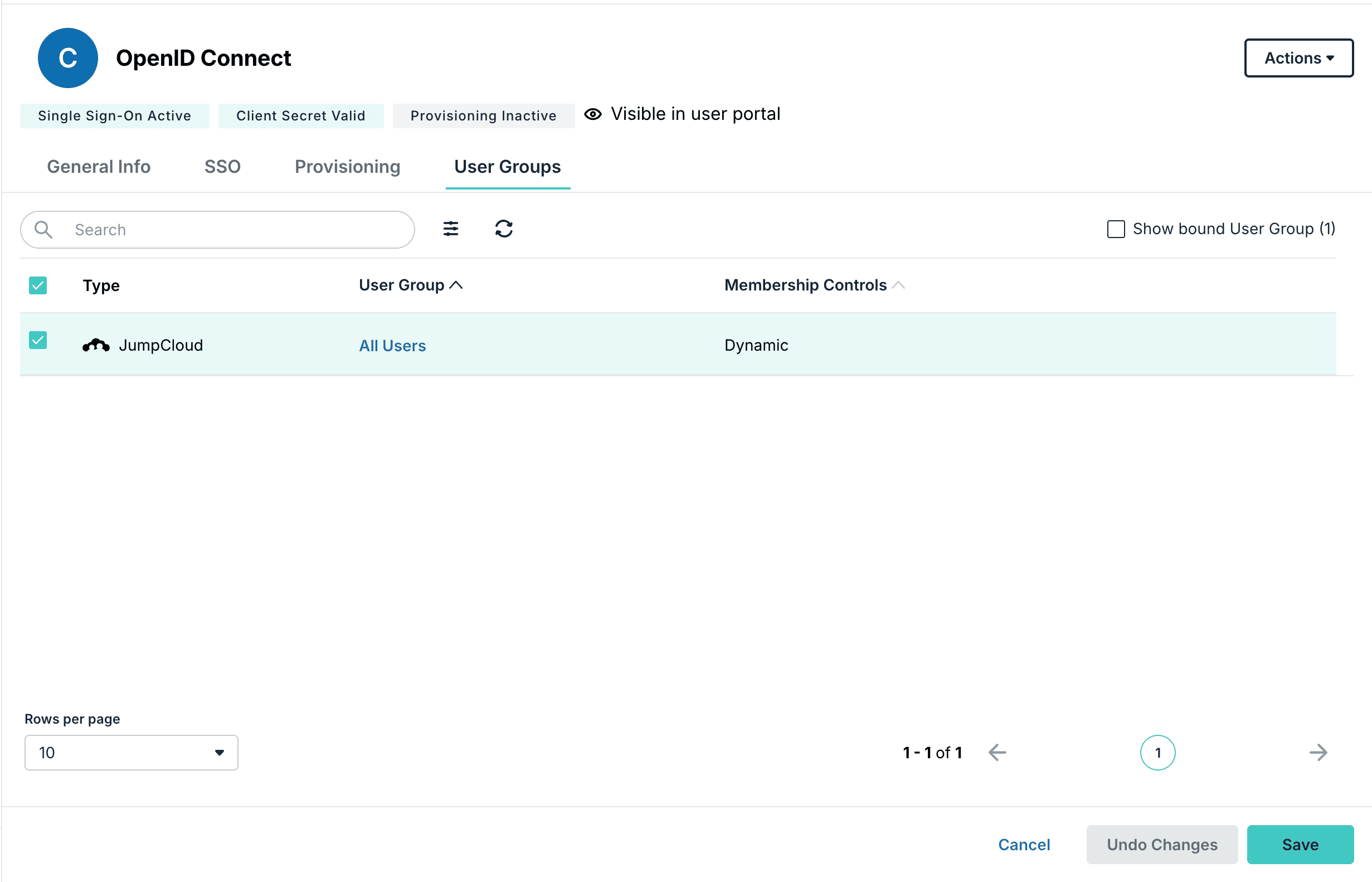
Click on User Groups tab and enable the checkbox for User Group to enable SSO and click on Save.
-
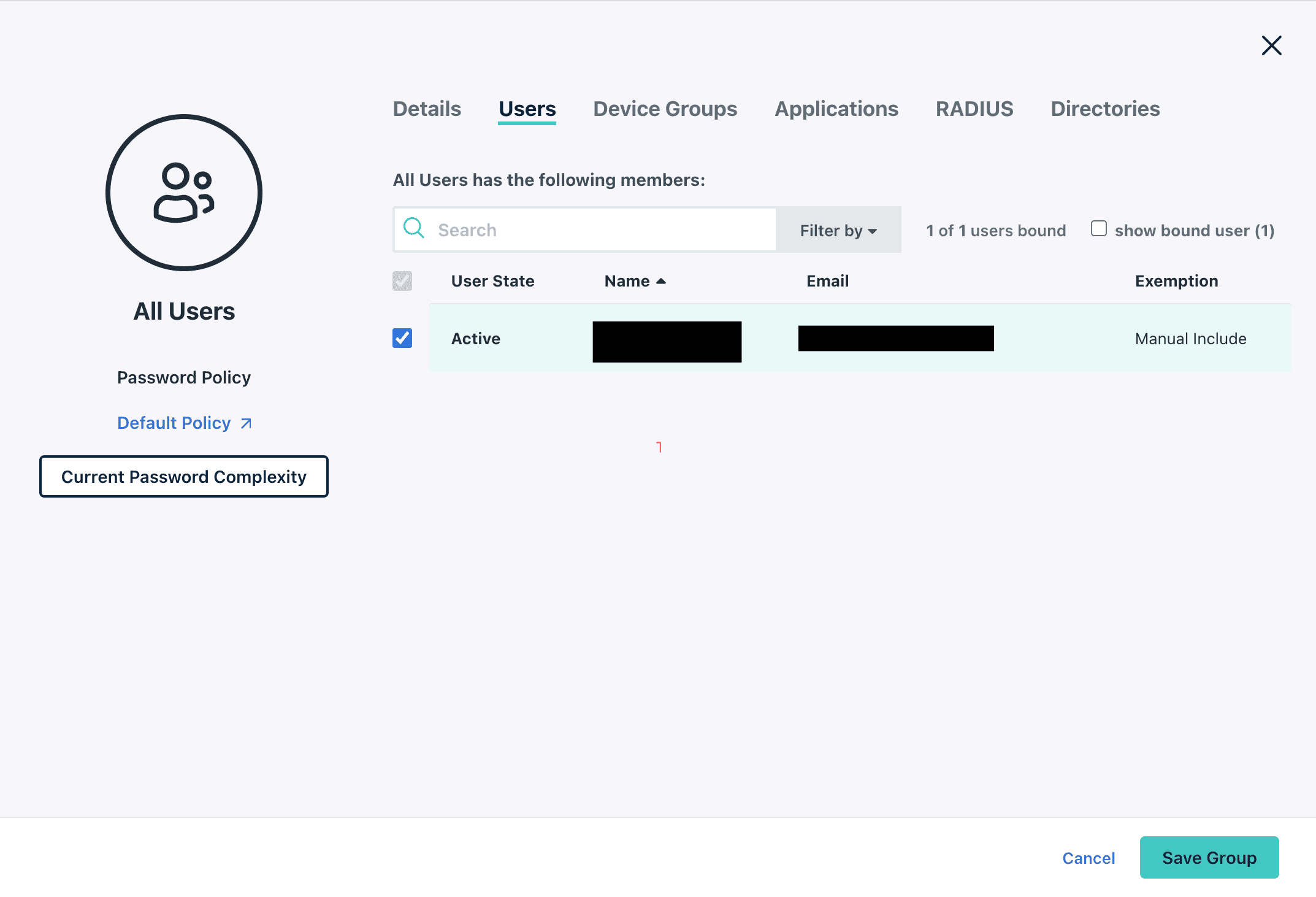
Click on the User Group -> Select Users tab and make sure checkbox is enabled for the user you want to grant SSO access to in the group and Click on Save Group.
-
The above Client ID, Client Secret and Issuer URL can be provided to CubeAPM to enable Sign in with JumpCloud (set
auth.oidc.jumpcloud.client-id,auth.oidc.jumpcloud.client-secretandauth.oidc.jumpcloud.issuer-urlproperties in/etc/cubeapm/config.properties, orconfigVars.auth.oidc.jumpcloud.clientId,configVars.auth.oidc.jumpcloud.clientSecretandconfigVars.auth.oidc.jumpcloud.issuerUrlin helm chart values file).
For JumpCloud IssuerURL refer: https://jumpcloud.com/support/sso-with-oidc